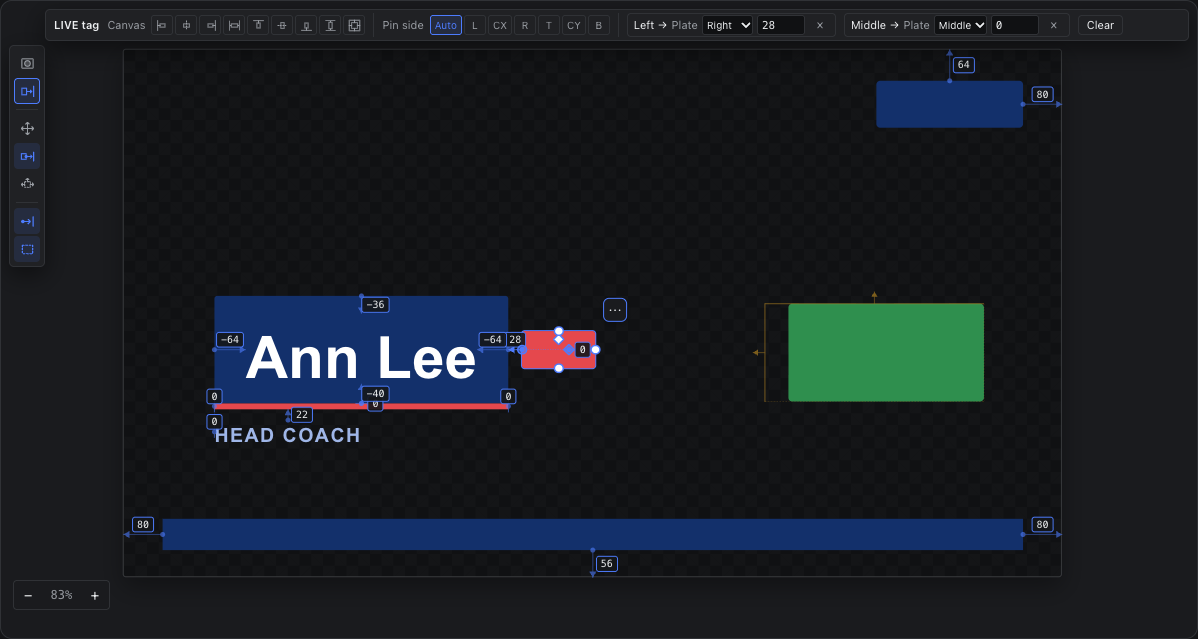
Anchors & Colliders
Pin edges to other items or to the canvas with arrows, and keep items from overlapping with colliders.
Switching the canvas tool strip between Masks and Anchor & Collider.
The tool strip on the left of a graphic scene holds one toolbox at a time. The two buttons at its top switch between them: Masks (the Photoshop-style mask and selection tools) and Anchor & Collider. The options bar along the top of the canvas follows the toolbox and the tool.
| Tool | Key | What it does |
|---|---|---|
| Move | V | The usual handles. Anchored items still drag, resize and nudge: the change is stored as their margins, so they stay pinned. |
| Anchor | A | Pins a side of the selected item to an edge of another item or of the canvas. |
| Collider | C | Makes sides of the selected item solid and pads its collider box. |
Pressing A or C opens the Anchor & Collider toolbox from anywhere on the canvas; pressing a mask tool's key (M, L, B…) switches back to Masks. Below the tools, two toggles choose whether every item's anchors and colliders are drawn, or only the selection's.