Workspace Layout
Panes, tabs and docks — how the editor screen is put together and how to rearrange it.
Opening, closing, reordering and moving tabs.
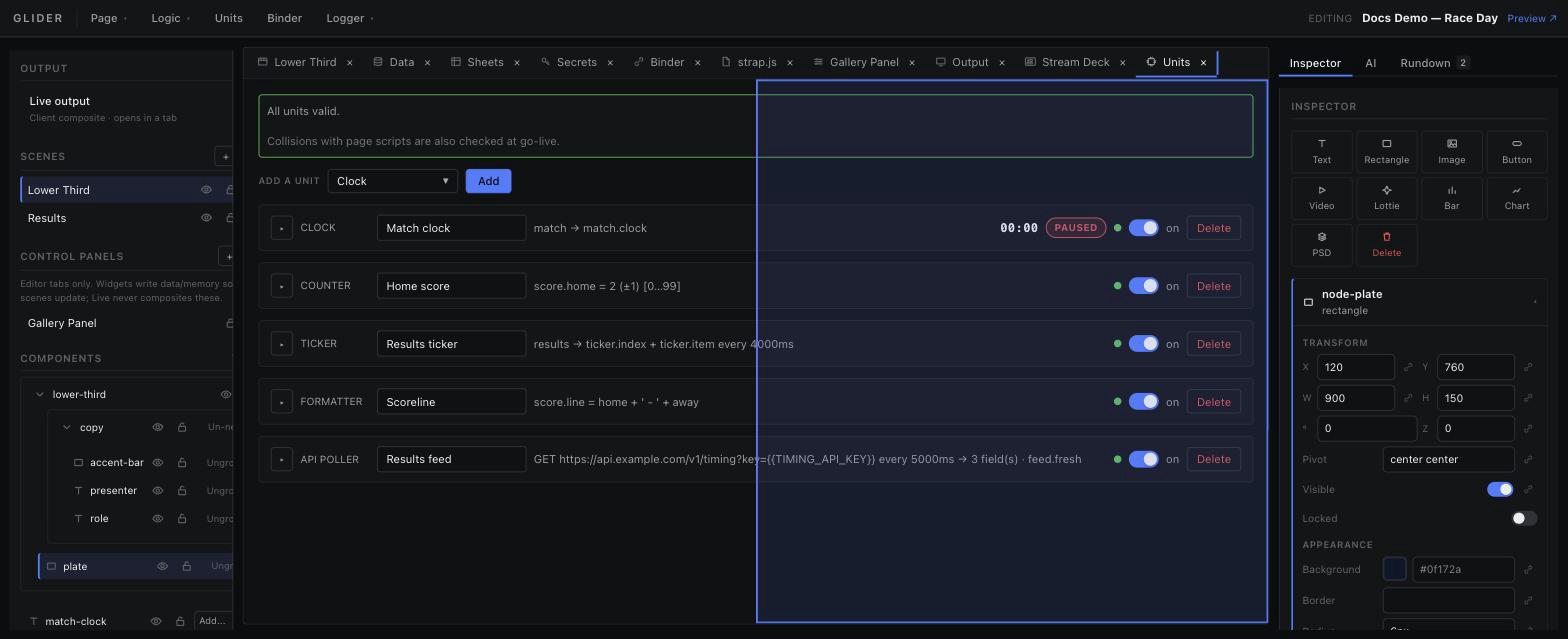
The centre workspace is a VS Code-style tab strip. Most tabs are singletons: asking for Units, Binder, Output, Rundown or a Logic section focuses the existing tab instead of opening a second one. Scenes are one tab per layer; files are one tab per file.
| Action | Result |
|---|---|
| Click a tab | Activates it and focuses its pane. |
| Middle-click a tab | Closes it. |
| × on the tab | Closes it. |
| Drag within the strip | Reorders. A drop indicator shows where it will land. |
| Drag onto the other pane's strip | Moves the tab to that pane. |
| Drag to a pane's edge | Splits — see the Splits tab. |
Closing the active tab activates its neighbour. A tab whose target has been deleted is drawn struck through in the on-air red and its tooltip reads “Deleted: …”.